# MFE - Lightweight Multi File Upload Editor
**Video demo:**
https://github.com/user-attachments/assets/179e6940-5798-4482-9a69-696f806c37de
**Dark mode:**

changelogs available here:
MFE - Multi File Upload Editor is a lightweight, secure, self-hosted web application for uploading, syntax highlight editing, drag & drop and managing files. Built with an Apache/PHP backend and a modern JavaScript (ES6 modules) frontend, it offers a responsive, dynamic file management interface. It serves as an alternative to solutions like FileGator TinyFileManager or ProjectSend, providing an easy-to-setup experience ideal for document management, image galleries, firmware file hosting, and more.
---
## Features
- **Multiple File/Folder Uploads with Progress:**
- Users can select and upload multiple files & folders at once.
- Each file upload displays an individual progress bar with percentage and upload speed.
- Image files show a small thumbnail preview (with default Material icons for other file types).
- **Built-in File Editing & Renaming:**
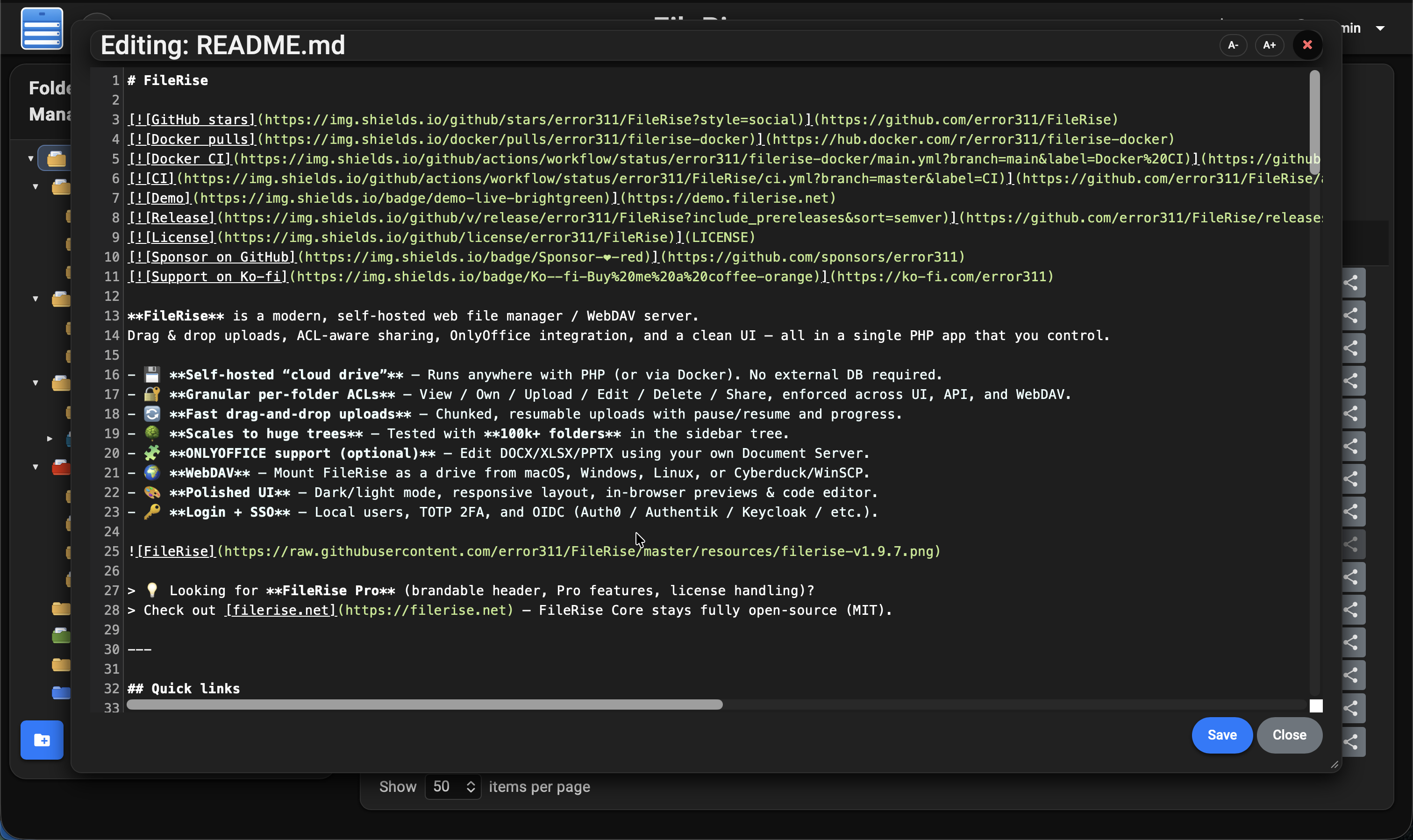
- Text-based files (e.g., .txt, .html, .js) can be opened and edited in a modal window using CodeMirror for:
- Syntax highlighting
- Line numbering
- Adjustable font sizes
- Files can be renamed directly through the interface.
- The renaming functionality now supports names with parentheses and checks for duplicate names, automatically generating a unique name (e.g., appending “ (1)”) when needed.
- Folder-specific metadata is updated accordingly.
- **Built-in File Preview:**
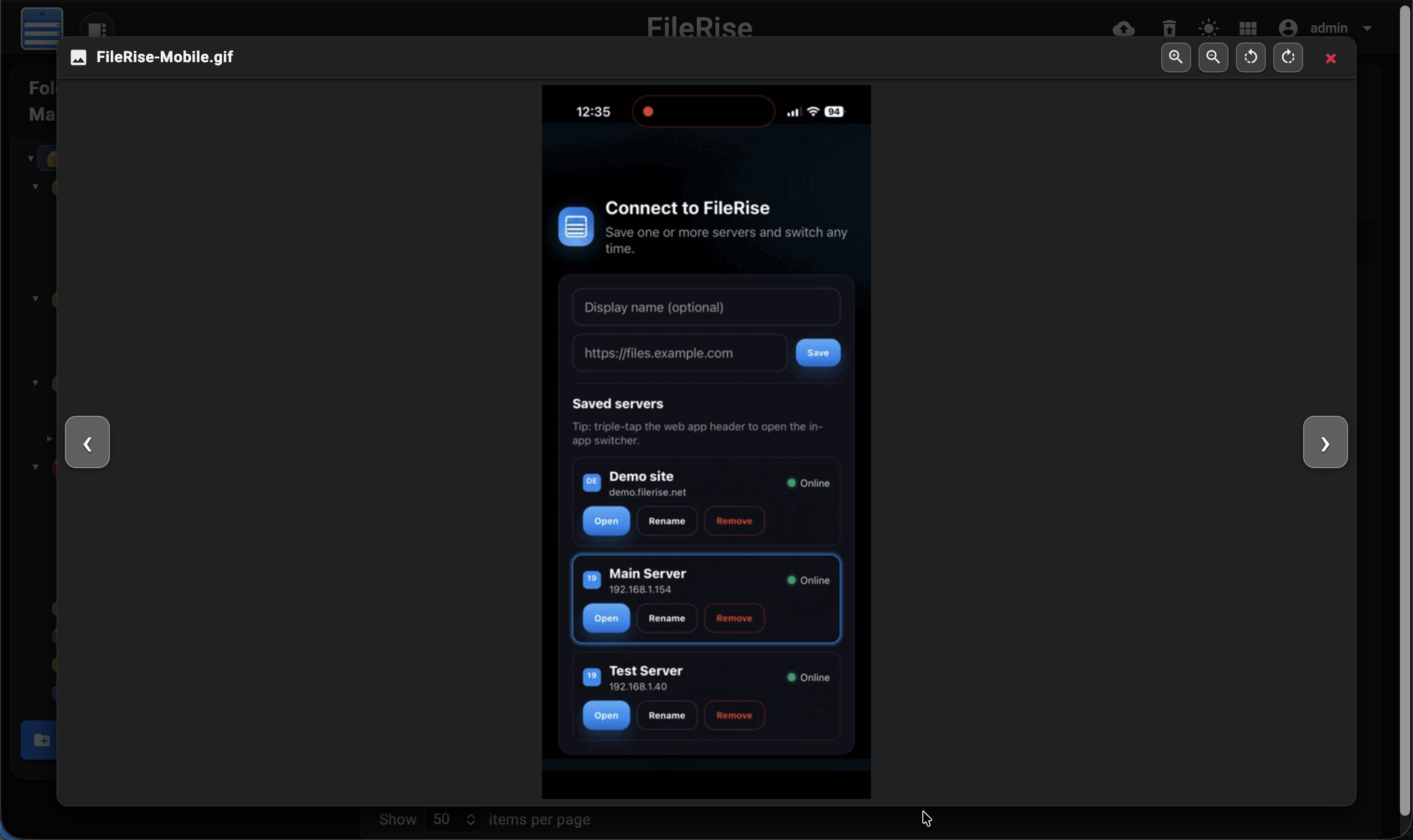
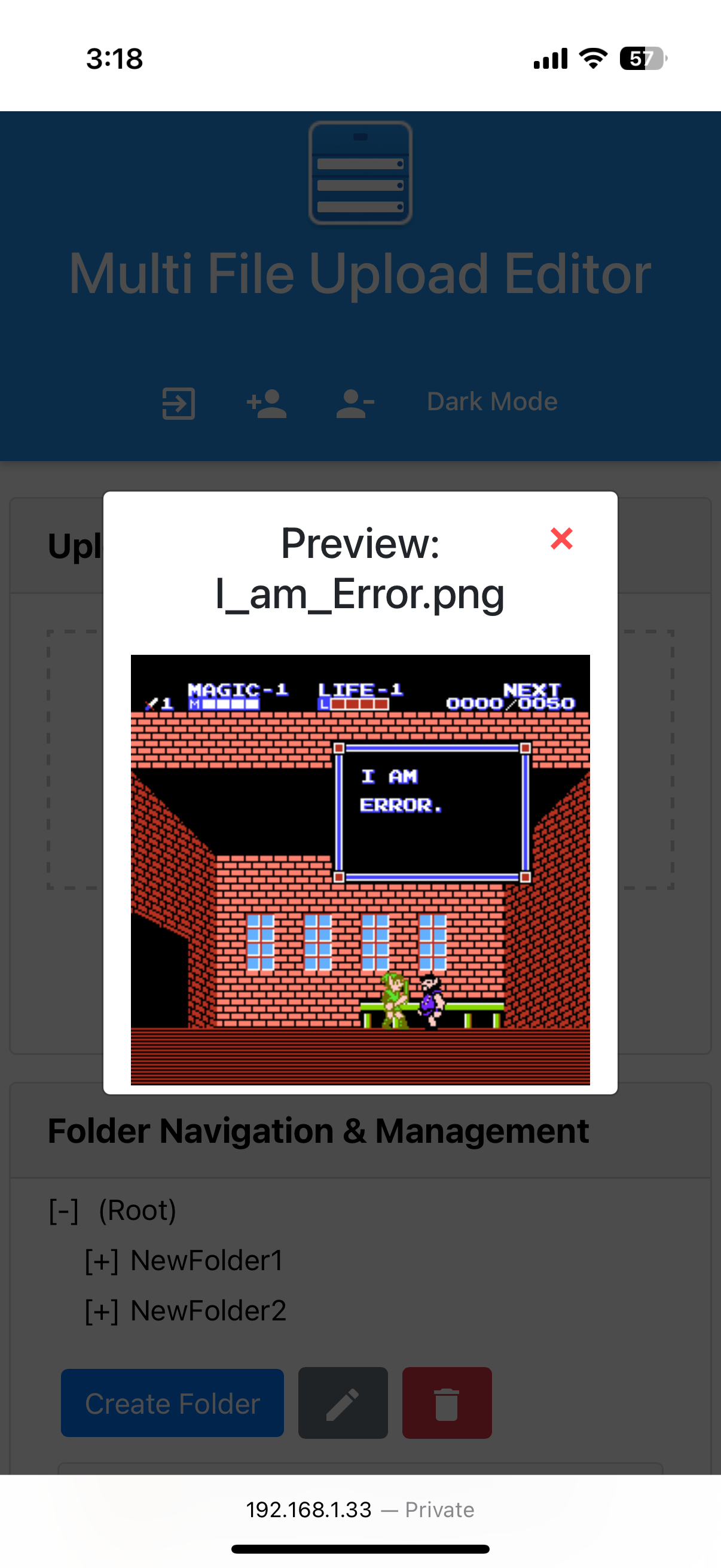
- Users can quickly preview images, videos, and PDFs directly in modal popups without leaving the page.
- The preview modal supports inline display of images (with proper scaling) and videos with playback controls.
- Navigation (prev/next) within image previews is supported for a seamless browsing experience.
- **Gallery (Grid) View:**
- In addition to the traditional table view, users can toggle to a gallery view that arranges image thumbnails in a grid layout.
- The gallery view offers multiple column options (e.g., 3, 4, or 5 columns) so that users can choose the layout that best fits their screen.
- Action buttons (Download, Edit, Rename, Share) appear beneath each thumbnail for quick access.
- **Batch Operations (Delete/Copy/Move/Download):**
- **Delete Files:** Delete multiple files at once.
- **Copy Files:** Copy selected files to another folder with a unique-naming feature to prevent overwrites.
- **Move Files:** Move selected files to a different folder, automatically generating a unique filename if needed to avoid data loss.
- **Download Files as ZIP:** Download selected files as a ZIP archive. Users can specify a custom name for the ZIP file via a modal dialog.
- **Drag & Drop:** Easily move files by selecting them from the file list and simply dragging them onto your desired folder in the folder tree. When you drop the files onto a folder, the system automatically moves them, updating your file organization in one seamless action.
- **Folder Management:**
- Organize files into folders and subfolders with the ability to create, rename, and delete folders.
- A dynamic folder tree in the UI allows users to navigate directories easily, and any changes are immediately reflected in real time.
- **Per-Folder Metadata Storage:** Each folder has its own metadata JSON file (e.g., `root_metadata.json`, `FolderName_metadata.json`), and operations (copy/move/rename) update these metadata files accordingly.
- **Sorting & Pagination:**
- The file list can be sorted by name, modified date, upload date, file size, or uploader.
- Pagination controls let users navigate through files with selectable page sizes (10, 20, 50, or 100 items per page) and “Prev”/“Next” navigation buttons.
- **Share Link Functionality:**
- Generate shareable links for files with configurable expiration times (e.g., 30, 60, 120, 180, 240 minutes, and a 1-day option) and optional password protection.
- Share links are stored in a JSON file with details including the folder, file, expiration timestamp, and hashed password.
- The share endpoint (`share.php`) validates tokens, expiration, and password before serving files (or forcing downloads).
- The share URL is configurable via environment variables or auto-detected from the server.
- **User Authentication & Management:**
- Secure, session-based authentication protects the file manager.
- Admin users can add or remove users through the interface.
- Passwords are hashed using PHP’s `password_hash()` for security.
- All state-changing endpoints include CSRF token validation.
- **Responsive, Dynamic & Persistent UI:**
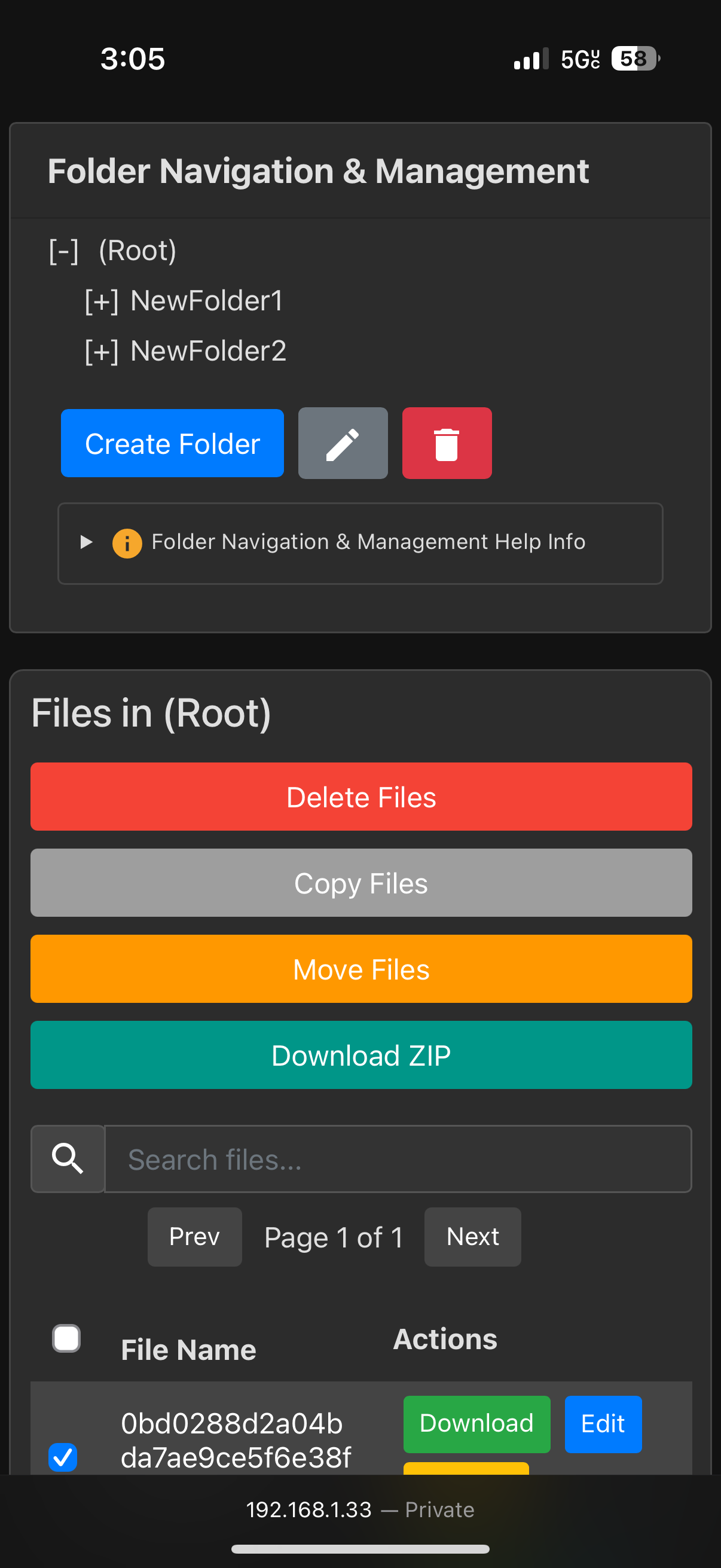
- The interface is mobile-friendly and adapts to various screen sizes by hiding non-critical columns on small devices.
- Asynchronous updates (via Fetch API and XMLHttpRequest) keep the UI responsive without full page reloads.
- Persistent settings (such as items per page, dark/light mode preference, folder tree state, and the last open folder) ensure a smooth and customized user experience.
- **Dark Mode/Light Mode:**
- The application automatically adapts to the operating system’s theme preference by default and offers a manual toggle.
- The dark mode provides a darker background with lighter text and adjusts UI elements (including the CodeMirror editor) for optimal readability in low-light conditions.
- The light mode maintains a bright interface for well-lit environments.
- **Server & Security Enhancements:**
- The Apache configuration (or .htaccess files) is set to disable directory indexing (e.g., using `Options -Indexes` in the uploads directory), preventing unauthorized users from viewing directory contents.
- Direct access to sensitive files (e.g., `users.txt`) is restricted through .htaccess rules.
- A proxy download mechanism has been implemented (via endpoints like `download.php` and `downloadZip.php`) so that every file download request goes through a PHP script. This script validates the session and CSRF token before streaming the file, ensuring that even if a file URL is guessed, only authenticated users can access it.
- Administrators are advised to deploy the app on a secure internal network or use the proxy download mechanism for public deployments to further protect file content.
- **Trash Management with Restore & Delete:**
- **Trash Storage & Metadata:**
- Deleted files are moved to a designated “Trash” folder rather than being immediately removed.
- Metadata is stored in a JSON file (`trash.json`) that records:
- Original folder and file name
- Timestamp when the file was trashed
- Uploader information (and optionally who deleted it)
- Additional metadata (e.g., file type)
- **Restore Functionality:**
- Admins can view trashed files in a modal.
- They can restore individual files (with conflict checks) or restore all files back to their original location.
- **Delete Functionality:**
- Users can permanently delete trashed files via:
- **Delete Selected:** Remove specific files from the Trash and update `trash.json`.
- **Delete All:** Permanently remove every file from the Trash after confirmation.
- **Auto-Purge Mechanism:**
- The system automatically purges (permanently deletes) any files in the Trash older than three days, helping manage storage and prevent the accumulation of outdated files.
- **User Interface:**
- The trash modal displays details such as file name, uploader/deleter, and the trashed date/time.
- Material icons with tooltips visually represent the restore and delete actions.
---
## Screenshots
**Light mode:**

**Dark editor:**
**Dark preview**
**Restore or Delete Trash:**

**Login page:**

**iphone screenshots:**
---
## Installation & Setup
### Manual Installation
1. **Clone or Download the Repository:**
- **Clone:**
```bash
git clone https://github.com/error311/multi-file-upload-editor.git
```
- **Download:**
Download the latest release from the GitHub releases page and extract it into your desired directory.
2. **Deploy to Your Web Server:**
- Place the project files in your Apache web directory (e.g., `/var/www/html`).
- Ensure PHP 8.1+ is installed along with the required extensions (php-json, php-curl, php-zip, etc.).
3. **Directory Setup & Permissions:**
- Create the following directories if they do not exist, and set appropriate permissions:
- `uploads/` – for file storage.
- `users/` – to store `users.txt` (user authentication data).
- `metadata/` – for storing `file_metadata.json` and other metadata.
- Example commands:
```bash
mkdir -p /var/www/uploads /var/www/users /var/www/metadata
chmod -R 775 /var/www/uploads /var/www/users /var/www/metadata
```
4. **Configure Apache:**
- Ensure that directory indexing is disabled (using `Options -Indexes` in your `.htaccess` or Apache configuration).
- Make sure the Apache configuration allows URL rewriting if needed.
5. **Configuration File:**
- Open `config.php` and adjust the following constants as necessary:
- `BASE_URL`: Set this to your web app’s base URL.
- `UPLOAD_DIR`: Adjust the directory path for uploads.
- `TIMEZONE`: Set to your preferred timezone.
- `TOTAL_UPLOAD_SIZE`: Ensure it matches PHP’s `upload_max_filesize` and `post_max_size` settings in your `php.ini`.
### Initial Setup Instructions
- **First Launch Admin Setup:**
On first launch, if no users exist, the application will enter a setup mode. You will be prompted to create an admin user. This is handled automatically by the application (e.g., via a “Create Admin” form).
**Note:** No default credentials are provided. You must create the first admin account to log in and manage additional users.
---
## Docker Usage
For users who prefer containerization, a Docker image is available
### Quickstart
1. **Pull the Docker Image:**
```bash
docker pull error311/multi-file-upload-editor-docker:latest
```
2. **Run the Container:**
```bash
docker run -d \
-p 80:80 \
-e TIMEZONE="America/New_York" \
-e TOTAL_UPLOAD_SIZE="5G" \
-e SECURE="false" \
-v /path/to/your/uploads:/var/www/uploads \
-v /path/to/your/users:/var/www/users \
-v /path/to/your/metadata:/var/www/metadata \
--name multi-file-upload-editor \
error311/multi-file-upload-editor-docker:latest
```
3. **Using Docker Compose:**
Create a docker-compose.yml file with the following content:
```yaml
version: "3.8"
services:
web:
image: error311/multi-file-upload-editor-docker:latest
ports:
- "80:80"
environment:
TIMEZONE: "America/New_York"
TOTAL_UPLOAD_SIZE: "5G"
SECURE: "false"
volumes:
- /path/to/your/uploads:/var/www/uploads
- /path/to/your/users:/var/www/users
- /path/to/your/metadata:/var/www/metadata
```
**Then start the container with:**
```bash
docker-compose up -d
```
---
## Configuration Guidance
The `config.php` file contains several key constants that may need adjustment for your deployment:
- **BASE_URL:**
Set to the URL where your application is hosted (e.g., `http://yourdomain.com/uploads/`).
- **UPLOAD_DIR, USERS_DIR, META_DIR:**
Define the directories for uploads, user data, and metadata. Adjust these to match your server environment or Docker volume mounts.
- **TIMEZONE & DATE_TIME_FORMAT:**
Set according to your regional settings.
- **TOTAL_UPLOAD_SIZE:**
Defines the maximum upload size (default is `5G`). Ensure that PHP’s `upload_max_filesize` and `post_max_size` in your `php.ini` are consistent with this setting. The startup script (`start.sh`) updates PHP limits at runtime based on this value.
- **Environment Variables (Docker):**
The Docker image supports overriding configuration via environment variables. For example, you can set `SECURE`, `SHARE_URL`, and port settings via the container’s environment.
---
## Additional Information
- **Security:**
All state-changing endpoints use CSRF token validation. Ensure that sessions and tokens are correctly configured as per your deployment environment.
- **Permissions:**
Both manual and Docker installations include steps to ensure that file and directory permissions are set correctly for the web server to read and write as needed.
- **Logging & Troubleshooting:**
Check Apache logs (located in `/var/log/apache2/`) for troubleshooting any issues during deployment or operation.
Enjoy using the Multi File Upload Editor! For any issues or contributions, please refer to the [GitHub repository](https://github.com/error311/multi-file-upload-editor).