
16 KiB
FileRise
Elevate your File Management – A modern, self-hosted web file manager. Upload, organize, and share files or folders through a sleek web interface. FileRise is lightweight yet powerful: think of it as your personal cloud drive that you control. With drag-and-drop uploads, in-browser editing, secure user logins (with SSO and 2FA support), and one-click sharing, FileRise makes file management on your server a breeze.
4/3/2025 Video demo:
https://github.com/user-attachments/assets/221f6a53-85f5-48d4-9abe-89445e0af90e
Dark mode:
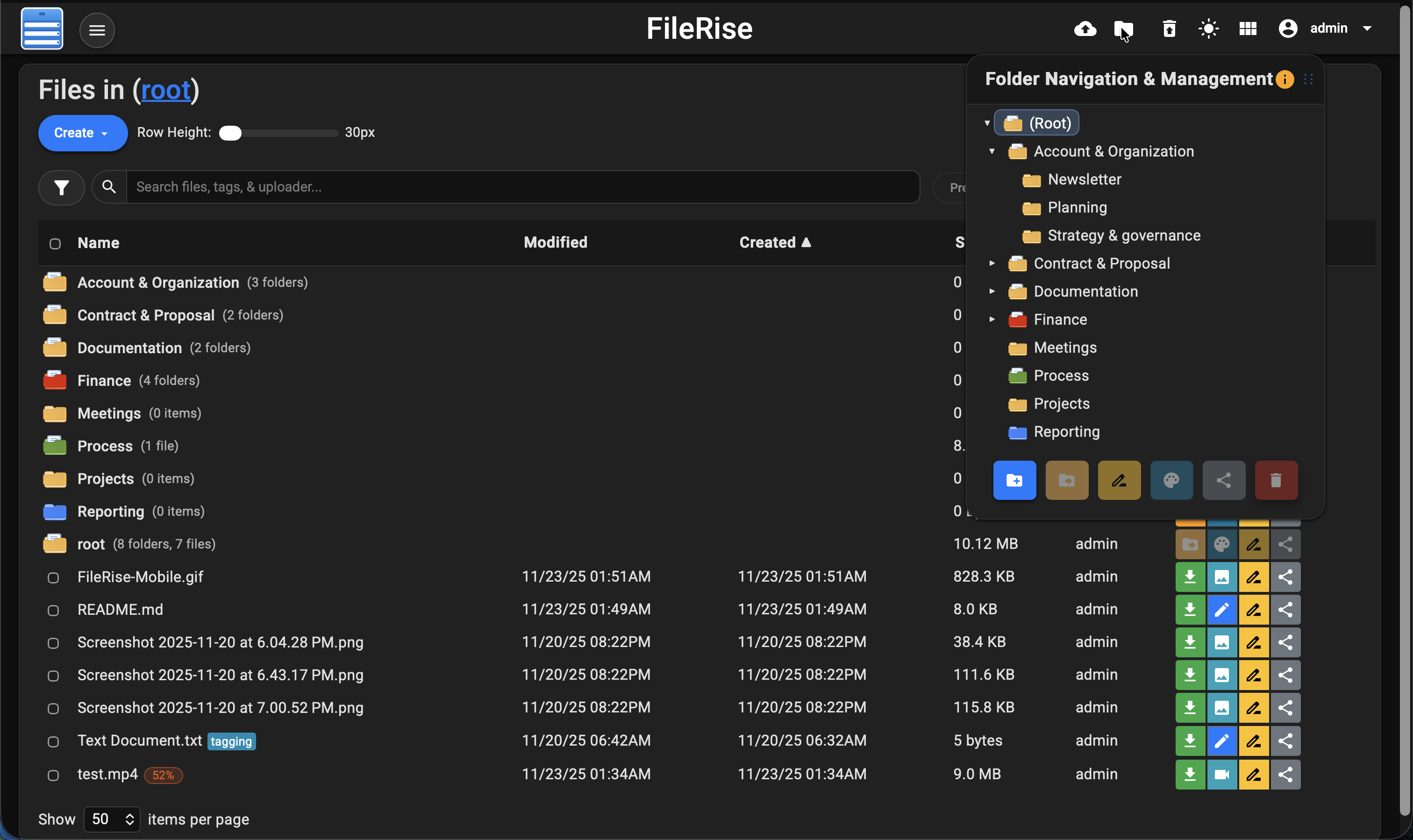
Features at a Glance or Full Features Wiki
-
🚀 Easy File Uploads: Upload multiple files and folders via drag & drop or file picker. Supports large files with pause/resumable chunked uploads and shows real-time progress for each file. No more failed transfers – FileRise will pick up where it left off if your connection drops.
-
🗂️ File Management: Full set of file/folder operations – move or copy files (via intuitive drag-drop or dialogs), rename items, and delete in batches. You can even download selected files as a ZIP archive or extract uploaded ZIP files server-side. Organize content with an interactive folder tree and breadcrumb navigation for quick jumps.
-
🗃️ Folder Sharing & File Sharing: Easily share entire folders via secure, expiring public links. Folder shares can be password-protected, and shared folders support file uploads from outside users with a separate, secure upload mechanism. Folder listings are paginated (10 items per page) with navigation controls, and file sizes are displayed in MB for clarity. Share files with others using one-time or expiring public links (with password protection if desired) – convenient for sending individual files without exposing the whole app.
-
🔌 WebDAV Support: Mount FileRise as a network drive or use it head‑less from the CLI. Standard WebDAV operations (upload / download / rename / delete) work in Cyberduck, WinSCP, GNOME Files, Finder, etc., and you can also script against it with
curl– see the WebDAV + curl quick‑start for examples. Folder‑Only users are restricted to their personal directory, while admins and unrestricted users have full access. -
📚 API Documentation: Fully auto‑generated OpenAPI spec (
openapi.json) and interactive HTML docs (api.html) powered by Redoc. -
📝 Built-in Editor & Preview: View images, videos, audio, and PDFs inline with a preview modal – no need to download just to see them. Edit text/code files right in your browser with a CodeMirror-based editor featuring syntax highlighting and line numbers. Great for config files or notes – tweak and save changes without leaving FileRise.
-
🏷️ Tags & Search: Categorize your files with color-coded tags and locate them instantly using our indexed real-time search. Easily switch to Advanced Search mode to enable fuzzy matching not only across file names, tags, and uploader fields but also within the content of text files—helping you find that “important” document even if you make a typo or need to search deep within the file.
-
🔒 User Authentication & User Permissions: Secure your portal with username/password login. Supports multiple users – create user accounts (admin UI provided) for family or team members. User permissions such as User “Folder Only” feature assigns each user a dedicated folder within the root directory, named after their username, restricting them from viewing or modifying other directories. User Read Only and Disable Upload are additional permissions. FileRise also integrates with Single Sign-On (OIDC) providers (e.g., OAuth2/OIDC for Google/Authentik/Keycloak) and offers optional TOTP two-factor auth for extra security.
-
🎨 Responsive UI (Dark/Light Mode): FileRise is mobile-friendly out of the box – manage files from your phone or tablet with a responsive layout. Choose between Dark mode or Light theme, or let it follow your system preference. The interface remembers your preferences (layout, items per page, last visited folder, etc.) for a personalized experience each time.
-
🌐 Internationalization & Localization: FileRise supports multiple languages via an integrated i18n system. Users can switch languages through a user panel dropdown, and their choice is saved in local storage for a consistent experience across sessions. Currently available in English, Spanish, French & German—please report any translation issues you encounter.
-
🗑️ Trash & File Recovery: Mistakenly deleted files? No worries – deleted items go to the Trash instead of immediate removal. Admins can restore files from Trash or empty it to free space. FileRise auto-purges old trash entries (default 3 days) to keep your storage tidy.
-
⚙️ Lightweight & Self‑Contained: FileRise runs on PHP 8.1+ with no external database required – data is stored in files (users, metadata) for simplicity. It’s a single‑folder web app you can drop into any Apache/PHP server or run as a container. Docker & Unraid ready: use our pre‑built image for a hassle‑free setup. Memory and CPU footprint is minimal, yet the app scales to thousands of files with pagination and sorting features.
(For a full list of features and detailed changelogs, see the Wiki, changelog or the releases pages.)
Live Demo
Curious about the UI? Check out the live demo: https://demo.filerise.net (login with username “demo” and password “demo”). The demo is read-only for security. Explore the interface, switch themes, preview files, and see FileRise in action!
Installation & Setup
You can deploy FileRise either by running the Docker container (quickest way) or by a manual installation on a PHP web server. Both methods are outlined below.
1) Running with Docker (Recommended)
Pull the image
docker pull error311/filerise-docker:latest
Run a container
docker run -d \
  --name filerise \
  -p 8080:80 \
  -e TIMEZONE="America/New_York" \
  -e DATE_TIME_FORMAT="m/d/y  h:iA" \
  -e TOTAL_UPLOAD_SIZE="5G" \
  -e SECURE="false" \
  -e PERSISTENT_TOKENS_KEY="please_change_this_@@" \
  -e PUID="1000" \
  -e PGID="1000" \
  -e CHOWN_ON_START="true" \
  -e SCAN_ON_START="true" \
  -e SHARE_URL="" \
  -v ~/filerise/uploads:/var/www/uploads \
  -v ~/filerise/users:/var/www/users \
  -v ~/filerise/metadata:/var/www/metadata \
  error311/filerise-docker:latest
This starts FileRise on port 8080 → visit http://your-server-ip:8080.
Notes
- Do not use Docker
--user. Use PUID/PGID to map on-disk ownership (e.g.,1000:1000; on Unraid typically99:100). CHOWN_ON_START=trueis recommended on first run to normalize ownership of existing trees. Set to false later for faster restarts.SCAN_ON_START=trueruns a one-time index of files added outside the UI so their metadata appears.SHARE_URLis optional; leave blank to auto-detect from the current host/scheme. You can set it to your site root (e.g.,https://files.example.com) or directly to the full endpoint.- Set
SECURE="true"if you serve via HTTPS at your proxy layer.
Verify ownership mapping (optional)
docker exec -it filerise id www-data
# expect: uid=1000 gid=1000   (or 99/100 on Unraid)
Using Docker Compose
Save as docker-compose.yml, then docker-compose up -d:
version: "3"
services:
  filerise:
    image: error311/filerise-docker:latest
    ports:
      - "8080:80"
    environment:
      TIMEZONE: "UTC"
      DATE_TIME_FORMAT: "m/d/y  h:iA"
      TOTAL_UPLOAD_SIZE: "10G"
      SECURE: "false"
      PERSISTENT_TOKENS_KEY: "please_change_this_@@"
      # Ownership & indexing
      PUID: "1000"              # Unraid users often use 99
      PGID: "1000"              # Unraid users often use 100
      CHOWN_ON_START: "true"    # first run; set to "false" afterwards
      SCAN_ON_START: "true"     # index files added outside the UI at boot
      # Sharing URL (optional): leave blank to auto-detect from host/scheme
      SHARE_URL: ""
    volumes:
      - ./uploads:/var/www/uploads
      - ./users:/var/www/users
      - ./metadata:/var/www/metadata
FileRise will be accessible at http://localhost:8080 (or your server’s IP).
The example also sets a custom PERSISTENT_TOKENS_KEY (used to encrypt “Remember Me” tokens)—change it to a strong random string.
First-time Setup
On first launch, if no users exist, you’ll be prompted to create an Admin account. After logging in, use User Management to add more users.
2) Manual Installation (PHP/Apache)
If you prefer to run FileRise on a traditional web server (LAMP stack or similar):
Requirements
- PHP 8.3+
- Apache (mod_php) or another web server configured for PHP
- PHP extensions:
json,curl,zip(and typical defaults). No database required.
Download Files
git clone https://github.com/error311/FileRise.git
Place the files in your web root (e.g., /var/www/). Subfolder installs are fine.
Composer (if applicable) If you use optional features requiring Composer libraries, run:
composer install
Folders & Permissions
mkdir -p uploads users metadata
chown -R www-data:www-data uploads users metadata   # use your web user
chmod -R 775 uploads users metadata
uploads/: actual filesusers/: credentials & token storagemetadata/: file metadata (tags, share links, etc.)
Configuration
Open config.php and consider:
TIMEZONE,DATE_TIME_FORMATfor your locale.TOTAL_UPLOAD_SIZE(also ensure your PHPupload_max_filesize&post_max_sizemeet/exceed this).PERSISTENT_TOKENS_KEYset to a unique secret if using “Remember Me”.
Share links base URL
- You can set
SHARE_URLvia your web server environment variables (preferred),
or keep usingBASE_URLinconfig.phpas a fallback for manual installs. - If neither is set, FileRise auto-detects from the current host/scheme.
Web Server Config
- Apache: allow
.htaccessor merge its rules; ensuremod_rewriteis enabled. - Nginx/other: replicate the basic protections (no directory listing, deny sensitive files). See Wiki for examples.
Now browse to your FileRise URL; you’ll be prompted to create the Admin user on first load.
Quick‑start: Mount via WebDAV
Once FileRise is running, you must enable WebDAV in admin panel to access it.
# Linux (GVFS/GIO)
gio mount dav://demo@your-host/webdav.php/

# macOS (Finder → Go → Connect to Server…)
dav://demo@your-host/webdav.php/
Windows (File Explorer)
-
Open File Explorer → Right-click This PC → Map network drive…
-
Choose a drive letter (e.g.,
Z:). -
In Folder, enter:
https://your-host/webdav.php/ -
Check Connect using different credentials, and enter your FileRise username and password.
-
Click Finish. The drive will now appear under This PC.
Important:
Windows requires HTTPS (SSL) for WebDAV connections by default.
If your server uses plain HTTP, you must adjust a registry setting:
Open Registry Editor (
regedit.exe).Navigate to:
HKEY_LOCAL_MACHINE\SYSTEM\CurrentControlSet\Services\WebClient\ParametersFind or create a
DWORDvalue named BasicAuthLevel.Set its value to
2.Restart the WebClient service or reboot your computer.
📖 For a full guide (including SSL setup, HTTP workaround, and troubleshooting), see the WebDAV Usage Wiki.
FAQ / Troubleshooting
-
“Upload failed” or large files not uploading: Make sure
TOTAL_UPLOAD_SIZEin config and PHP’spost_max_size/upload_max_filesizeare all set high enough. For extremely large files, you might also need to increase max_execution_time in PHP or rely on the resumable upload feature in smaller chunks. -
How to enable HTTPS? FileRise itself doesn’t handle TLS. Run it behind a reverse proxy like Nginx, Caddy, or Apache with SSL, or use Docker with a companion like nginx-proxy or Caddy. Set
SECURE="true"env var in Docker so FileRise knows to generate https links. -
Changing Admin or resetting password: Admin can change any user’s password via the UI (User Management section). If you lose admin access, you can edit the
users/users.txtfile on the server – passwords are hashed (bcrypt), but you can delete the admin line and then restart the app to trigger the setup flow again. -
Where are my files stored? In the
uploads/directory (or the path you set forUPLOAD_DIR). Within it, files are organized in the folder structure you see in the app. Deleted files move touploads/trash/. Tag information is inmetadata/file_metadata.json and trash metadata inmetadata/trash.json, etc. Regular backups of these folders is recommended if the data is important. -
Updating FileRise: If using Docker, pull the new image and recreate the container. For manual installs, download the latest release and replace the files (preserve your
config.phpand the uploads/users/metadata folders). Clear your browser cache if you have issues after an update (in case CSS/JS changed).
For more Q&A or to ask for help, please check the Discussions or open an issue.
Contributing
Contributions are welcome! If you have ideas for new features or have found a bug, feel free to open an issue. Check out the CONTRIBUTING.md for guidelines. You can also join the conversation in GitHub Discussions or on Reddit (see links below) to share feedback and suggestions.
Areas where you can help: translations, bug fixes, UI improvements, or building integration with other services. If you like FileRise, giving the project a ⭐ star ⭐ on GitHub is also a much-appreciated contribution!
Community and Support
- Reddit: r/selfhosted: FileRise Discussion – (Announcement and user feedback thread).
- Unraid Forums: FileRise Support Thread – for Unraid-specific support or issues.
- GitHub Discussions: Use the Q&A category for any setup questions, and the Ideas category to suggest enhancements.
Dependencies
PHP Libraries
- jumbojett/openid-connect-php (v^1.0.0)
- phpseclib/phpseclib (v~3.0.7)
- robthree/twofactorauth (v^3.0)
- endroid/qr-code (v^5.0)
- sabre/dav (^4.4)
Client-Side Libraries
- Google Fonts – Roboto and Material Icons (Google Material Icons)
- Bootstrap (v4.5.2)
- CodeMirror (v5.65.5) – For code editing functionality.
- Resumable.js (v1.1.0) – For file uploads.
- DOMPurify (v2.4.0) – For sanitizing HTML.
- Fuse.js (v6.6.2) – For indexed, fuzzy searching.
Acknowledgments
- Based on uploader by @sensboston.
License
This project is open-source under the MIT License. That means you’re free to use, modify, and distribute FileRise, with attribution. We hope you find it useful and contribute back!